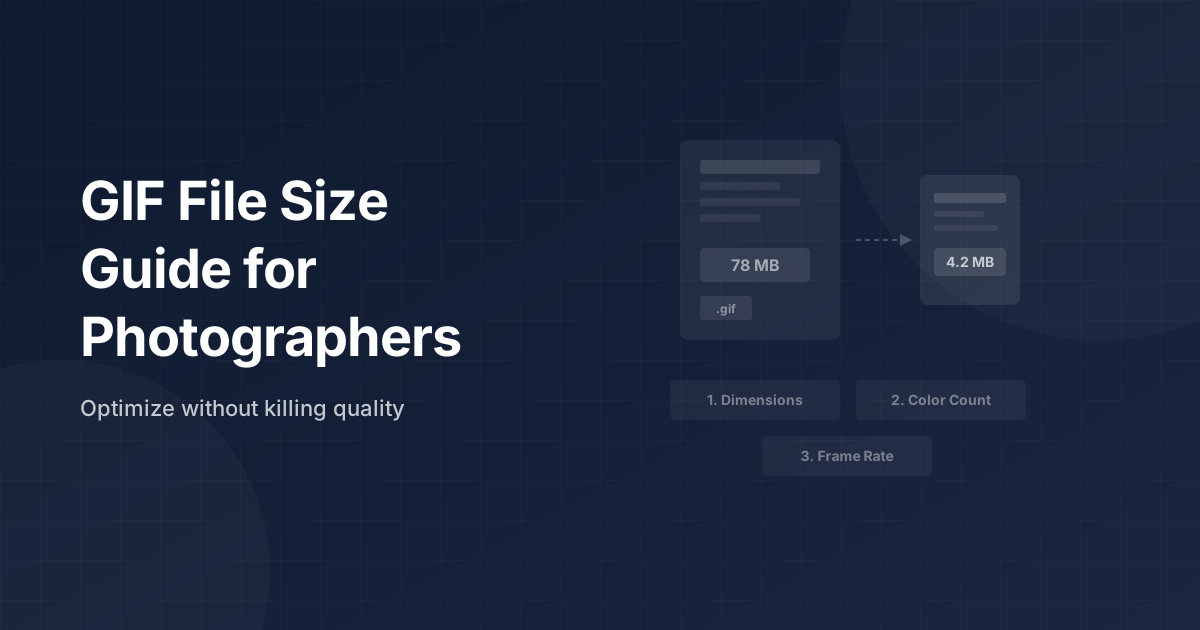
The first time I tried to upload an animated moment into a client gallery, I got an error I didn’t expect. File too large. The GIF was 78MB — technically a valid GIF, technically the moment I’d spent time editing, technically useless for delivery.
I’d done everything right in Lightroom. The burst sequence was clean, the colors were exactly where I wanted them, the timing felt natural. The GIF was just enormous, because I hadn’t thought about how GIF files actually work and what makes them balloon.
This is that explanation, with the specific numbers I’ve settled on after shooting a couple hundred weddings with animated moments in the deliverables.
Why GIFs Get So Big
GIF compression is different from JPEG. With JPEG, you dial down quality and the file shrinks — you’re throwing away fine detail. GIF doesn’t work that way. Each frame is stored with a 256-color palette and a lossless compression pass. The only thing GIF can throw away is colors; it can’t blur or lose detail.
That means a 3-second burst at 12fps is 36 frames, each of which is essentially a small PNG. At 1500px wide, a single frame might be 150–300KB uncompressed. Multiply that by 36, add overhead, and you’re easily at 20–50MB for a sequence that looks nothing special.
The other thing that catches people: GIF doesn’t do “quality 80%” the way JPEG does. You’re controlling palette size, dimensions, and frame count — and if you don’t consciously control those, the defaults will give you something huge.
The Three Levers That Actually Matter
Dimensions
This is the most powerful knob. Halving the width of a GIF roughly quarters the file size, because you’re cutting both horizontal and vertical pixel counts. A 1500px wide GIF at the same settings as a 750px wide GIF will be approximately four times larger.
For a client gallery, 1200–1500px wide is plenty. The gallery platform will display it at maybe 900px wide inside a grid, and nobody is zooming in on the pixels of a dancing first-dance clip. For email, 800px is fine. If you’re sharing on Slack or Discord, 600px.
The mistake is exporting at full camera resolution — 6000px wide — and then wondering why the file is 200MB.
Color Count
Default GIF encoding uses 256 colors. In practice, photographic content with smooth tonal gradients needs a lot of those. But you can often drop to 128 colors without a visible difference, especially on dark-background images or sequences without delicate skin tones.
Going down to 64 colors will visibly posterize most photography — you’ll see banding in skies and gradients. I stay at 128 for wedding work and don’t go lower unless the content is very graphic (like a confetti sequence against a white wall, where you don’t need nuance).
The difference between 256 and 128 colors is roughly 15–25% file size reduction on realistic photographic content. Not transformative on its own, but it adds up alongside the other changes.
Frame Rate
A 10-second burst at 12fps is 120 frames. At 8fps, it’s 80 frames. That 33% reduction in frame count becomes roughly 33% smaller file — it’s almost perfectly proportional, since each frame contributes independently.
8fps looks fine for slow movement: a veil drift, a slow walk, a couple embracing. For fast action — first dance dips, bouquet tosses, confetti explosions — you start losing the motion quality below 10fps. 12fps is my default for anything dynamic; 8fps for atmospheric, slow-moving sequences.
Never try to fix a file-size problem by dropping to 6fps or lower. The stutter becomes obvious and it looks amateur. Better to reduce dimensions or switch to MP4 than to make it jittery.
The Honest MP4 Case
Here’s the thing I wish someone had told me earlier: for every use case except email inline playback and some specific messaging apps, MP4 is just better.
Same 10-second burst sequence, same visual quality: the MP4 is typically 2–5MB. The GIF is 25–80MB. That’s not a small difference — it’s a factor of ten to twenty in file size. MP4 uses modern video compression that actually works on photographic gradients. GIF compression was invented in 1987 for simple graphics.
Client galleries (Pixieset, Pic-Time, Shootproof) all support looping MP4. When you upload an MP4 to Pic-Time and mark it as a video clip, it plays inline in the gallery just like an animated image would. Clients don’t know or care whether it’s a GIF or MP4 — they just see something that moves.
For Instagram and TikTok, you’re forced to upload as video anyway. Both reject GIF uploads and convert them internally. So you’d be uploading a 50MB GIF that the platform converts into a 3MB video — the conversion happens, you just did it the hard way.
The places where GIF still earns its spot: Slack, Discord, some email clients, text messages, and places where you want something that plays without a video player. For quick, paste-anywhere sharing where you don’t control the environment, GIF still has an edge in universality.
Platform Size Targets (What I Actually Use)
- Client gallery upload (GIF): under 10MB. If it’s over 10MB, I export as MP4 instead.
- Email attachment: under 5MB as a GIF. Over that, I send a JPEG still with a link to the video version.
- Website/blog embed: under 2MB as GIF, or use a
<video autoplay loop muted playsinline>tag with an MP4 instead. - Twitter/X: accepts GIFs up to 15MB, converts to video internally. Fine for sharing.
- Instagram Stories/Reels/TikTok: export as MP4, period. GIF uploads are not supported.
How to Actually Reduce the Size
If you’re using Burst2GIF to make the GIF — full disclosure, I built it — you can set output dimensions at export time. Pick a width that matches your use case, not your camera resolution. The plugin also exports MP4 natively, which I now use for gallery deliveries by default and reserve GIF for the situations above.
For GIFs you’ve already made and want to compress after the fact, three tools I’ve actually used:
Gifski (macOS, free) takes a video or image sequence and exports a high-quality GIF with proper temporal dithering. You control dimensions and frame rate at export. This is what I reach for when I need the best-looking GIF at a given file size.
Squoosh (web, free, by Google) handles single-frame images but not video — useful for compressing a static GIF thumbnail if you have one.
ezgif.com has a dedicated optimizer that can reduce color count, apply lossy compression, and resize, all in-browser. It works. The privacy caveat is that you’re uploading client files to a third party — something to think about with client work. I’ve written a comparison of privacy-friendly alternatives if that matters for your workflow.
The fastest workflow, though: get the settings right at export time and skip the post-processing step entirely. Setting dimensions to 1200px and frame rate to 10fps in Burst2GIF adds zero time to the process.
One Simple Rule
If your GIF is over 10MB and it’s going to a client gallery, switch to MP4. You’ll get a smaller file, better playback quality, and a client experience that’s identical or better. GIF made sense as the universal animated format a decade ago. In 2026, every platform that matters plays MP4, and the ones that don’t (like email) are better served by a still image with a link anyway.
Keep GIF for quick, informal sharing where you need something that works everywhere without a player. Use MP4 for everything else.
Ready to Turn Your Burst Photos Into GIFs?
Burst2GIF works directly inside Lightroom Classic. Select your burst photos, click export, and get a smooth GIF or MP4 in seconds.