You know that moment when a couple opens their gallery and suddenly a photo moves? The groom wiping a tear, confetti swirling mid-air — their face just lights up. I’ve been slipping animated moments into my wedding galleries for over a year now, and honestly, the reactions never get old. Every single couple tells me the same thing: those living photos are the best part of the entire gallery.
Here’s the thing though — getting GIFs and MP4 videos to show up between your photos in the right chronological spot? That’s where most photographers hit a wall and give up. I almost did too, until I figured out a workflow that adds basically zero extra time to my delivery.
Let me walk you through the exact process for both Pic-Time and Pixieset, since those are what most of us are using anyway.
Why Clients Love Animated Moments in Their Gallery
Static photos tell the story. Animated moments relive it.
Think about the first look for a second. That half-second where his face shifts from nervous wreck to pure emotion. One photo freezes a single frame of that. A burst GIF captures the whole transformation — two seconds of looping magic.
Or the bouquet toss. The reach, the grab, the chaos. A rapid-fire sequence turned into an MP4 shows that energy in a way no single frame ever could.
After shooting 200+ weddings, I can tell you straight up — clients mention the animated moments more than any individual photo. One bride wrote to me: “The photos were absolutely touching, especially the moving images between the photos. I keep going back to them.” That message still makes my day.
The key — and this is really important — is that these animated pieces sit right between your regular photos, in the exact moment they happened. Not dumped at the end of the gallery like an afterthought. Not in some separate folder nobody finds. Right there in the timeline, where they belong.
How to Shoot for Gallery GIFs
I won’t go deep on shooting technique here — I’ve written a complete guide to the best wedding moments for burst photos — but here’s the quick version:
Camera settings: Continuous burst mode (I prefer mechanical shutter), 8-20 fps depending on your body. Shoot 1-3 second bursts — that’s 10-30 frames, which translates to a smooth 2-3 second animation.
What to look for: Any moment with movement or emotion unfolding over time. First looks, veil tosses, ring exchanges, first dance dips, sparkler exits, confetti throws, bouquet tosses, cake smashing, group cheers.
Mindset shift: You’re not hunting for the decisive moment anymore. You’re capturing the entire moment as it unfolds. Think of your burst as a tiny film clip. It took me a few weddings to rewire my brain for this, but once it clicks, you start seeing burst-worthy moments everywhere.
At a typical wedding, I shoot 15-25 burst sequences and end up delivering 10-15 animated moments in the final gallery.
Creating GIFs and MP4s with Burst2GIF
Here’s where it all comes together. Burst2GIF is a Lightroom Classic plugin I built specifically for this — it turns your burst photo sequences into GIF or MP4 files directly from your Library module. No Photoshop. No exporting JPEGs to some random folder. No juggling third-party apps.
The whole thing takes about 10 seconds per animation:
-
Select your burst photos in Lightroom Library. These are the consecutive frames from one burst sequence — typically 10-30 images.
-
Launch the plugin: Library > Plug-in Extras > Burst2GIF.
-
Set your options: Choose your frame rate (8-12 fps works best for most wedding moments), select GIF or MP4 format, pick your output size.
-
Click Export. Done.
The plugin reads your photos with all Lightroom adjustments applied — exposure, white balance, cropping, everything. No JPEG export roundtrip. No quality loss from some intermediate step.
But here’s the real magic for gallery delivery — and the part that makes this whole workflow actually practical: Burst2GIF automatically imports the finished GIF or MP4 back into your Lightroom catalog. And it sets the capture time to match the original burst sequence.
That capture time detail? That’s everything. It’s the thing that makes the gallery workflow seamless. Without it, you’d be manually dragging files around in your gallery trying to get them in the right spot. Nobody has time for that.
The Pic-Time Workflow in Detail
This is exactly what I do for every single wedding I deliver. It adds zero extra time beyond the 10 seconds per GIF creation, because everything stays inside Lightroom where I’m already working.
Step 1: Create Your Animations in Lightroom
Go through your wedding edit as usual. Whenever you hit a burst sequence you want to animate, select the frames and run Burst2GIF. The plugin exports the GIF/MP4 and imports it back into your Lightroom catalog automatically.
After processing all your burst sequences, you’ll have your animated files sitting right there in your catalog, with capture timestamps that place them exactly where they belong among your photos. No spreadsheets. No renaming gymnastics.
Step 2: Export Everything Together
When you’re ready to export for delivery, select your entire wedding collection — photos AND the animated files — and export. In Lightroom’s export dialog, make sure “Include Video Files” is checked. This tells Lightroom to include your MP4/GIF files alongside the photos.
Export everything to one folder. Your photos and animations end up together, and the filenames reflect the chronological order because Burst2GIF already set the correct capture times. It just works.
Step 3: Upload to Pic-Time
Open your Pic-Time gallery and upload the entire folder. Since Pic-Time reads the file metadata (including capture time), your animated files slot into the correct position between your photos automatically.
The result: your client scrolls through their gallery, and every few photos, a moment comes alive. The first look loops. The confetti falls. The sparklers wave. All exactly where they should be in the timeline. I still get a little excited every time I preview a finished gallery.
Important Pic-Time Details
File size limit: Pic-Time accepts GIF uploads up to approximately 50MB. For most burst sequences at web resolution (1500-2000px wide), a 20-30 frame GIF will be 15-30MB — well within the limit.
MP4 is the way to go. The same 30-frame sequence that produces a 20MB GIF will be just 1-3MB as MP4. Better quality, full color depth, dramatically smaller files. Pic-Time plays both formats inline, so honestly, there’s no good reason to stick with GIF unless you specifically need it for something.
Auto-play behavior: On Pic-Time, GIFs auto-play as the client scrolls. MP4s display with a small play indicator but play inline — the client stays in the gallery view. Both formats work beautifully. I’ve gone almost entirely MP4 at this point and haven’t looked back.
Turn your burst photos into GIFs in 10 seconds.
Free version — 10 exports, no credit card needed.
Try Burst2GIF FreeThe Pixieset Workflow
Pixieset works similarly, with a few quirks in how files are handled.
Upload Process
Pixieset lets you upload photos and videos to the same gallery collection. After creating your animations with Burst2GIF and exporting from Lightroom (with video files included), upload everything to your Pixieset collection.
Pixieset recognizes the video files and displays them inline among your photos. The sorting works by filename or capture date, so the Burst2GIF capture time setting keeps everything in order — same principle, slightly different platform.
Pixieset-Specific Tips
Video format support: Pixieset handles MP4 files well. GIF support is more limited in terms of file size, so MP4 is definitely the safer choice here.
Gallery layout: In Pixieset’s grid view, video thumbnails show a small play icon. When clicked, they play inline without leaving the gallery. The experience is clean and professional — clients don’t notice any jarring transitions.
Download behavior: When clients download their gallery, video files are included alongside photos. This means your clients get their animated moments in their download — no separate delivery needed. One less thing to think about.
Best Practices for Gallery Animations
After delivering hundreds of galleries with animated moments, here’s what I’ve learned works and what doesn’t.
Scatter, Don’t Clump
Distribute your GIFs and MP4s throughout the gallery timeline. If you shot 15 burst sequences at a wedding, they should appear naturally through the day — a few during getting ready, one or two at the ceremony, several during portraits, a couple at the reception.
The worst thing you can do is dump all animations at the end of the gallery. They lose their context, they lose their impact, and it feels lazy. Trust me, I made this mistake early on.
Match the Photo Sequence
Name your files to maintain chronological order. Burst2GIF handles this automatically by setting the capture time to the original burst timestamp. When you export from Lightroom sorted by capture time, everything falls into place. This is one of those “set it and forget it” things that saves you actual headaches.
Keep File Sizes Reasonable
For Pic-Time, stay under 50MB per GIF file. But honestly, if your GIF is anywhere near 50MB, just switch to MP4. A 50MB GIF will be about 3-5MB as an MP4 with better quality. There’s no practical reason to deliver a 50MB GIF when a 3MB MP4 looks sharper.
My standard settings: MP4 format, 1500px wide, 10 fps, 20-30 frames. Each file ends up at 1-3MB. Your clients’ browsers will thank you.
Quality Over Quantity
Not every burst needs to become an animation. Be selective — pick the sequences where the movement actually tells a story. A burst of someone standing still with a slight head turn? Skip it. A burst of the flower girl spinning with petals flying? That’s the one.
I aim for 10-15 animated moments per wedding. Enough to surprise and delight throughout the gallery, not so many that they become expected or lose their special quality. When every other photo moves, none of them feel special.
Test Before Delivery
Before uploading to your client gallery, preview your animations. Check for:
- Smooth looping (the start and end frames should flow naturally)
- Correct speed (too fast looks frantic, too slow feels sluggish)
- File size (especially for GIF format)
- Correct placement in the timeline
I’ve caught a few embarrassing ones in preview — a GIF that was accidentally 3 fps and looked like a broken slideshow. Five minutes of QA saves you from a weird client conversation.
What Clients Actually Say
The response from clients has been the single biggest reason I keep doing this. It’s not just a cool trick — it genuinely changes how they experience their gallery. Beyond the bride I quoted earlier, here are the kinds of messages I get:
“I didn’t know you could do this with photos!” — Almost every client, the first time they see a burst GIF in their gallery. This one never gets old.
“My mom keeps replaying the one of my dad seeing me in my dress.” — Father-daughter first look moments are consistently the most-viewed animations. Gets me every time.
“Can I post this on Instagram?” — Yes. MP4 files from the gallery download work directly in Instagram posts and Stories. I always mention this in my delivery email now. (If you want to use the same burst MP4s for your own Reels as a photographer, I’ve written up the exact Lightroom-to-Reels workflow.)
These reactions happen because the animated moments are genuinely unexpected. Clients hire you for photos. When they open their gallery and photos start moving at exactly the right moments, it feels like a bonus they didn’t know they were getting. And that surprise factor? That’s how you get referrals.
Ready to Add Living Photos to Your Galleries?
If you’re already shooting bursts at weddings — and with modern cameras firing at 20+ fps, you almost certainly are — you’re sitting on animated content you’re not delivering. It’s just sitting on your hard drive as a bunch of sequential frames nobody will ever see as motion.
Burst2GIF turns those burst sequences into gallery-ready GIFs and MP4s in 10 seconds, with automatic Lightroom import and correct capture timestamps. The gallery workflow on Pic-Time and Pixieset is seamless once the files have the right metadata.
Here’s what I’d suggest: start with your next wedding. Pick 5 moments you’d normally shoot in burst mode anyway, process them through Burst2GIF, and add them to your gallery. Watch the client reactions. I’m pretty confident you’ll want to make it part of every delivery after that.
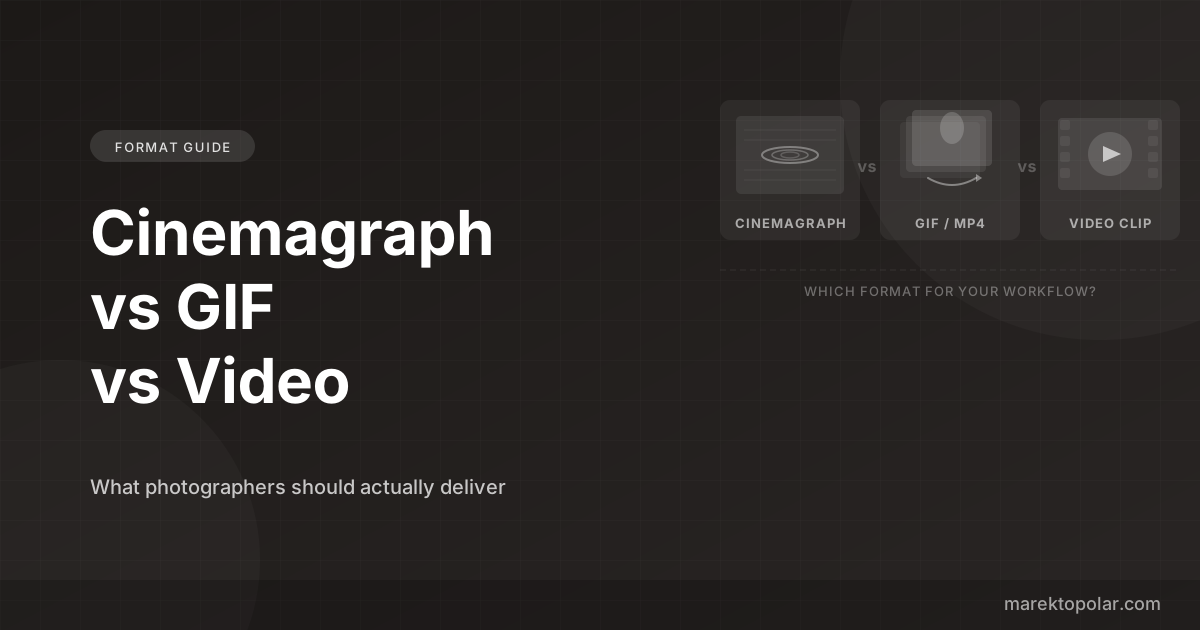
For a deeper look at the technical side, check out the complete burst-to-GIF guide, the GIF vs MP4 comparison to choose the right format, or the best wedding moments for burst photos for shooting inspiration.
Ready to Turn Your Burst Photos Into GIFs?
Burst2GIF works directly inside Lightroom Classic. Select your burst photos, click export, and get a smooth GIF or MP4 in seconds.